
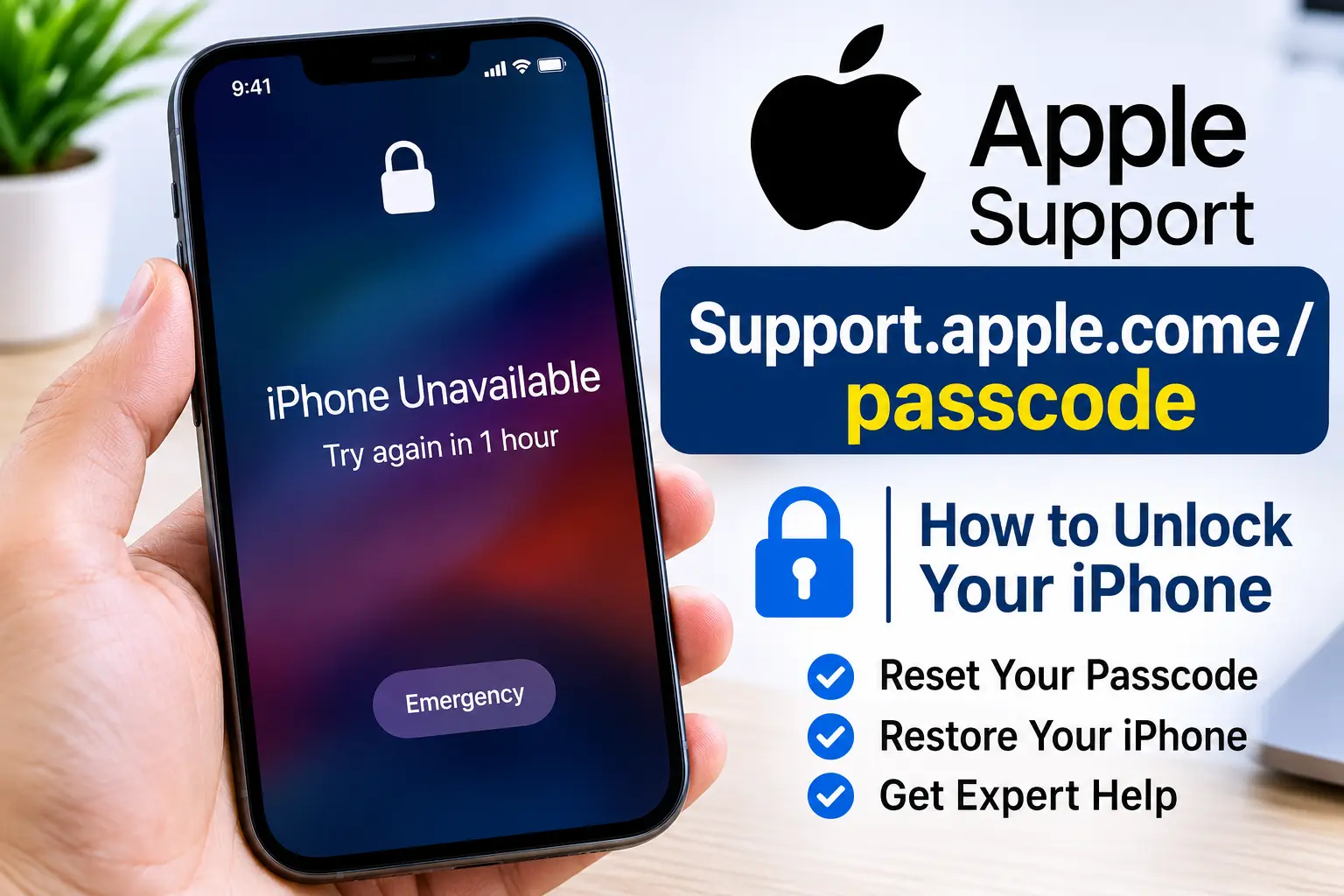
Support.apple.come/passcode: Complete Guide to Fixing a Forgotten iPhone Passcode
What Is Support.apple.come/passcode?
Support.apple.come/passcode is a search phrase people may use when looking for help with a forgotten iPhone passcode. It relates to Apple’s official device security and recovery guidance. However, it is important to understand that the correct official Apple website uses the domain support.apple.com, without an extra “e” at the end of “apple.com.”
Apple provides support resources for people who cannot unlock their iPhones, have entered an incorrect passcode multiple times, or see a Security Lockout or iPhone Unavailable message. These resources explain the available recovery methods and help users understand what to do next.
An iPhone passcode is an important security feature that protects personal information. It helps prevent unauthorized access to photographs, messages, applications, saved passwords, and other private information. When someone forgets this code, Apple provides recovery procedures designed to protect the device rather than bypass its security.
Why Does Your iPhone Become Locked?
An iPhone can become unavailable when someone repeatedly enters an incorrect passcode. This security feature exists to prevent other people from guessing the code and accessing private information. Depending on the number of unsuccessful attempts and the iOS version, the device may display a waiting period or a security lockout message.
Another common situation occurs when someone changes their passcode and quickly forgets the new one. This can happen when users select a complicated combination or rarely enter the passcode because they normally unlock their phones using Face ID or Touch ID.
Sometimes, children or other family members accidentally enter incorrect numbers several times while using an iPhone. Although the situation can be frustrating, the security lockout is designed to protect the owner’s information. It is better to follow Apple’s recovery instructions than to keep guessing different combinations.
How to Reset an iPhone Passcode
The first thing to understand is that forgetting an iPhone passcode is different from forgetting an Apple Account password. Your device passcode unlocks the iPhone, while your Apple Account credentials help you access Apple services such as iCloud and Find My.
If you recently changed your passcode, you may have another recovery option. On supported software versions, Apple allows users to use their previous passcode for a limited period after changing it. This can help someone who accidentally forgets a newly created code.
If that option is unavailable, the usual recovery process involves erasing and resetting the iPhone. After the reset, you can create a new passcode and restore available information from an existing backup. Always understand the data-loss implications before proceeding.
Method 1: Reset Your iPhone Without a Computer
Some newer iPhone software versions allow users to erase and reset their devices directly from the lock screen. This option can be useful when you do not have access to a Mac or Windows computer.
First, check whether your iPhone displays an option such as Forgot Passcode? or Erase iPhone. The wording and availability can vary depending on the iOS version and device. Follow the instructions displayed on the screen rather than relying on steps intended for a different software version.
The process may require an internet connection and your Apple Account password. Find My must also have been enabled before the device was locked. Once the required verification is completed, you can erase the iPhone and begin setting it up again. Remember that this process removes locally stored information unless it can be recovered from a backup.
Method 2: Use a Mac or Windows Computer
If the lock-screen recovery option is unavailable, you can use a computer to restore your iPhone. This method generally involves placing the device into recovery mode and connecting it to a Mac or Windows computer.
On a Mac running a supported version of macOS, open Finder and select your connected iPhone. On a Windows computer, use Apple’s Devices application. Depending on your computer’s software version, iTunes may also be required. Follow the instructions displayed by the relevant application.
When the computer offers the Restore option, follow the onscreen instructions to reinstall the device software and erase the iPhone. You may need a stable internet connection because the software download can take some time. Once restoration is complete, the iPhone displays its setup screen, allowing you to configure it again.
Google E-E-A-T Information
| E-E-A-T factor | How this article addresses it |
|---|---|
| Experience | Explains common iPhone passcode recovery situations |
| Expertise | Covers Apple’s recovery methods and security features |
| Authoritativeness | Uses Apple’s official support guidance |
| Trustworthiness | Warns about fake websites and data loss |
Support.apple.come/passcode – Key Data
| Information | Details |
|---|---|
| Main keyword | support.apple.come/passcode |
| Correct domain | support.apple.com |
| Topic | iPhone passcode recovery |
| Device | Apple iPhone |
| Recovery methods | Lock-screen reset and computer recovery |
| Verification | Apple Account credentials may be required |
| Backup options | iCloud and computer backup |
| Security features | Face ID, Touch ID and passcode |
| Search intent | Informational and troubleshooting |
| Target audience | iPhone users |
What Happens to Your Data After Resetting an iPhone?
One of the biggest concerns when resetting an iPhone is losing important personal information. Before starting the recovery process, users should understand that restoring a locked device generally requires erasing its existing content and settings.
If you previously created an iCloud backup, you may be able to recover photographs, application information, settings, and other supported content during the setup process. The information available for restoration depends on your backup date and the services you use.
A computer backup may also help recover your information if you created one before forgetting the passcode. However, data created after the last backup might not be included. This is why regularly backing up an iPhone is one of the most useful habits for protecting important files.
How to Restore Your iPhone From an iCloud Backup
After successfully erasing your device, switch on your iPhone and follow the setup instructions. You will eventually reach the Apps & Data section, where available restoration options are presented.
Select the option to restore from an iCloud backup and sign in using the Apple Account associated with your backup. You may see several backups with different dates. Choose the most appropriate backup, preferably the latest one that contains the information you need.
Keep your iPhone connected to Wi-Fi and power while the restoration process is running. Some information may continue downloading in the background even after the initial setup is complete. The total restoration time depends on your internet speed, backup size, and the amount of information being downloaded.
How to Create a Strong and Secure iPhone Passcode
Once you regain access to your iPhone, creating a strong passcode should be one of your priorities. A passcode protects your device when it is not being used and provides an additional security layer alongside Face ID or Touch ID.
Avoid simple combinations such as 123456, 000000, or your birth year. These combinations are easier to guess and may make your device less secure. A custom numeric or alphanumeric passcode can provide stronger protection, depending on its length and complexity.
You can change your passcode by opening Settings and selecting Face ID & Passcode or Touch ID & Passcode, depending on your iPhone model. Enter your current passcode, select Change Passcode, and follow the instructions. Choose a combination that is difficult for others to guess but manageable for you to remember.
Common Problems During iPhone Passcode Recovery
Some users experience problems when trying to restore their iPhones. One common issue is that the computer does not recognize the connected device. This may happen because of a damaged cable, an outdated application, an unstable USB connection, or a computer permission issue.
Another problem occurs when the software download takes longer than expected. If the iPhone exits recovery mode while a large software update is downloading, you may need to complete the download and repeat the recovery-mode process. Avoid disconnecting the device unnecessarily while restoration is underway.
Users may also encounter Activation Lock after erasing their iPhones. This security feature is associated with Find My and may require the Apple Account previously linked to the device. A factory reset does not remove ownership verification, so you should have access to the correct account credentials before beginning.
How to Avoid Forgetting Your iPhone Passcode Again
Preventing another passcode problem is easier than going through the recovery process repeatedly. Choose a secure combination that you can remember and avoid changing it unnecessarily. If you change your passcode, take some time to become familiar with the new combination.
You should also enable regular iCloud backups or create periodic backups using a computer. Automatic backups can be especially helpful because they reduce the chances of losing recently saved information if your iPhone becomes unavailable.
Finally, keep your Apple Account recovery information up to date. Make sure you can access your trusted phone number and recovery options. These details can become important when you need to verify your identity or regain access to Apple services.
Is Support.apple.come/passcode a Safe Website?
Website spelling matters when searching for technical support. The phrase support.apple.come/passcode contains an extra letter in the domain compared with Apple’s official support domain. Users should not assume that a website is genuine simply because its address contains the words Apple and Support.
For safety, open Apple’s support website by manually entering Support.apple.come into your browser. You can also navigate through Apple’s official website and select the iPhone support section. This reduces the risk of visiting an imitation website.
Never share your iPhone passcode, Apple Account password, or verification codes with an unknown person or website. Be particularly careful with websites promising to unlock any iPhone instantly without erasing data or verifying ownership. Use Apple’s official recovery procedures instead.
Conclusion
Support.apple.come/passcode is a keyword associated with people searching for solutions to forgotten iPhone passcodes. If your iPhone becomes unavailable, Apple’s official recovery options can help you erase, reset, and configure your device again.
The right recovery method depends on your iPhone model, iOS version, available computer access, and whether you have an existing backup. Before resetting your device, consider all available recovery options and understand that erasing an iPhone can remove locally stored information.
Most importantly, use Apple’s genuine support website, protect your Apple Account credentials, and maintain regular backups. These simple precautions can make future recovery situations much easier to handle.
Frequently Asked Questions (FAQs)
1. What is support.apple.come/passcode?
It is a search phrase related to Apple’s iPhone passcode recovery support. The correct official Apple support domain is support.apple.com.
2. Can I unlock my iPhone if I forget my passcode?
Yes, you may regain access by using Apple’s supported passcode reset or device recovery procedures. Depending on your circumstances, you may need to erase the device.
3. Can I reset my iPhone without a computer?
Yes. Supported iPhone and iOS versions offer a lock-screen reset option, provided the required account verification and device conditions are met.
4. Will resetting my iPhone delete everything?
Resetting an iPhone erases its existing content and settings. You may recover backed-up information afterward using iCloud or a compatible computer backup.
5. Do I need my Apple Account password to reset my iPhone?
Some recovery methods require your Apple Account password. You may also need the account credentials previously associated with the device to complete Activation Lock verification.
6. What should I do if my computer cannot detect my iPhone?
Check the USB cable, connection, computer software, and USB port. If the problem continues, consult Apple’s official troubleshooting instructions or contact Apple Support.
7. How can I prevent forgetting my passcode?
Choose a secure combination that you can remember, maintain regular backups, and keep your Apple Account recovery information updated.